Size and resolution
Match the pixel count to the size so text stays sharp. Too few pixels on a large screen looks soft; very high resolution on a small screen needs scaling to be readable.
| Size and resolution | Good for |
|---|---|
| 24 inch, 1920 x 1080 | Low cost, fine for single-app work and reception desks. Text is a little coarse up close. |
| 27 inch, 2560 x 1440 | The common office sweet spot: room for two documents side by side, sharp text. |
| 27 inch, 3840 x 2160 (4K) | Very sharp text with scaling; good for design, photos and people who read all day. |
| 32 inch 4K | Large workspace on one screen; needs a deeper desk. |
| 34 inch ultrawide, 3440 x 1440 | Replaces two monitors without a bezel down the middle; suits spreadsheets and timelines. |
Two 24 or 27 inch monitors side by side remain a common and effective setup. Standardizing on one model across the office makes spares, mounts and cables interchangeable.
USB-C: one cable to the laptop
A monitor with a USB-C input can carry video, data and power to a laptop over a single cable, so people can dock by plugging in one connector. It often replaces a separate docking station. Three things to check:
- Power delivery wattage. The monitor supplies a set number of watts to charge the laptop. If the laptop needs more than the monitor supplies, it charges slowly or drains under load. Compare the monitor's figure with the laptop's charger rating.
- Built-in hub. USB ports for keyboard and mouse, and ideally an Ethernet port, turn the monitor into the dock.
- The laptop port. Not every USB-C port on a laptop carries video. Check the laptop's specification for DisplayPort Alt Mode or Thunderbolt on that port.
Daisy-chaining two monitors
Some monitors have a DisplayPort or USB-C output so a second monitor can be chained from the first, using one cable from the laptop. This relies on DisplayPort Multi-Stream Transport (MST). Windows supports it for separate extended screens; Macs do not use MST for extended displays, so a chained pair on a Mac shows the same image on both. On Macs, use a Thunderbolt dock or separate cables, and check what your Mac model supports for external displays.
Stands, mounts and ergonomics
- Height adjustment matters most. The top of the screen should sit around eye level for most people, and a fixed-height stand rarely gets there without a stack of books.
- Tilt, swivel and pivot help shared desks and people who read long documents in portrait.
- VESA mount holes (commonly 100 x 100 mm) let you use a monitor arm, freeing desk space and giving more adjustment than most stands.
- Flicker-free backlight and a matte screen reduce glare and eye strain in bright offices.
OSHA has no specific computer workstation standard, but its eTools on computer workstations set out practical guidance on screen height, distance and posture.
Other features worth a look
- Built-in KVM: lets one keyboard, mouse and screen switch between a work laptop and a desktop.
- Built-in webcam and speakers: tidy for hot desks, though a separate webcam is usually better.
- Color accuracy: matters for design, photo and print proofing; look for a stated color gamut and factory calibration.
Energy
ENERGY STAR certifies computer monitors and signage displays against limits on on-mode, sleep and off power. Brightness is the biggest factor in a monitor's draw, and most offices run screens brighter than they need. The ENERGY STAR display register lists certified models and their measured power.
Costs people miss
- Monitor arms and cables, often not in the box.
- A second monitor per desk doubles the count, the mounts and the power.
- USB-C monitors cost more but can save a dock per desk.
- Recycling at end of life; many states run electronics recycling programs with their own rules.
Before you buy
- Choose size and resolution by the work: 27 inch 1440p or 4K suits most office desks.
- Check the laptops' USB-C ports and charger wattage against the monitor's power delivery.
- Buy a height-adjustable stand or plan for VESA arms.
- If you plan to daisy-chain, confirm your computers support MST.
- Read the warranty and dead pixel policy.
- Check the model in the ENERGY STAR display register.
For the computers behind the screens, see business computers. For conference rooms and lobbies, see meeting room displays.
USB-C monitors
Affiliate linksSingle-cable docking with power delivery. Compare the wattage with your laptop charger.

Dell
Dell S2722DC Monitor - 27-inch WQHD (2560x1440) 75Hz 4Ms Display, AMD FreeSync, Built in Speaker, USB Type-C Connectivity, Height/Pivot/Swivel/Tilt Adjust - Platinum Silver
PHILIPS
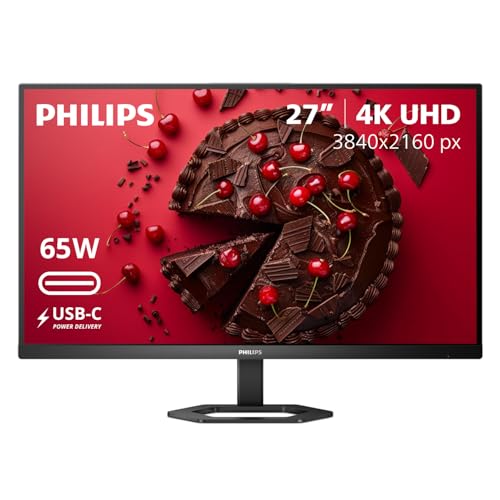
Philips 27" Computer Monitor 4K UHD IPS USB-C Charging HDR400, 27E1N5900R

AG Neovo
AG Neovo EM2751 27 inch 4K Monitor with USB-C

Dell
Dell Pro Plus P2725QE 27-Inch 4K UHD IPS Backlit-LED LCD USB-C Hub Monitor
Prices retrieved from Amazon on 2026-09-29 and may since have changed; the price on Amazon at the time of purchase is the one that applies. As an Amazon Associate we earn from qualifying purchases, at no extra cost to you. No manufacturer pays for a place in this list.
Monitor arms
Affiliate linksVESA arms free desk space and give more height adjustment than most stands.

Acer
Acer Dual Monitor Arm, Gas Spring VESA Mount Stand for 17-32" Screens

Amazon Basics
Amazon Basics Gas Spring Dual Monitor Arm Desk Mount, Adjustable Tension, Fits 15 - 27 Inch Monitors, Supports 4.4 - 15.4 lbs Each Arm, VESA 75x75/100x100, Black

5Rcom
5Rcom Dual Monitor Stand for 17-34 Inch Computer Screens

DUMOS
DUMOS Dual Monitor Mount for Desk, Gas Spring Monitor Arm for 2 Monitors Max 32 Inches, Fully Adjustable Double VESA Mount with C-Clamp/Grommet Base, Holds Screen 17.6 lbs
Prices retrieved from Amazon on 2026-09-29 and may since have changed; the price on Amazon at the time of purchase is the one that applies. As an Amazon Associate we earn from qualifying purchases, at no extra cost to you. No manufacturer pays for a place in this list.