Unmanaged, smart or managed
- Unmanaged. Plug in and it works. No settings, no VLANs, no monitoring. Fine for a handful of computers and a printer on one flat network, and for adding ports at a desk.
- Smart (or web-managed). A browser page for VLANs, basic quality of service, port mirroring and link aggregation. The usual right answer for an office of 10 to 50 people with phones or cameras.
- Fully managed. Command line and full routing and security features, stacking several switches as one, and detailed monitoring. Worth it when you have an IT person or a managed service provider who will use it.
- Cloud-managed. Configured from a vendor dashboard, handy across several sites. Many lines need a yearly license per switch, and some stop forwarding or stop being configurable if the license lapses. Read the terms before you commit.
Why VLANs matter even in a small office
A VLAN splits one physical switch into separate networks. The common layout is one for staff computers, one for voice, one for cameras and door controllers, and one for guest Wi-Fi. Cameras and smart devices are the weakest links on most networks, and keeping them off the network that holds your files limits the damage if one is compromised. A voice VLAN also lets the switch put call traffic first, so calls stay clear when someone uploads a large file. Unmanaged switches cannot do any of this.
Port speed and uplinks
- 1 Gb/s is still enough for desks, phones, printers and cameras.
- 2.5 Gb/s (multi-gig) ports are worth having for Wi-Fi 6E and Wi-Fi 7 access points, whose radios can pass more than 1 Gb/s. They run over existing Cat5e or Cat6 cable at normal office lengths.
- 10 Gb/s uplinks, usually SFP+ slots, connect the switch to a server, a NAS or a second switch without a bottleneck.
Count ports for today, add room for growth, and remember that uplinks and the router each take a port. A 24-port switch is often the better buy than a 16-port one for an office that will hire.
Power over Ethernet
PoE sends power and data down the same cable, so phones, cameras and access points need no outlet. Each IEEE standard sets the most power a switch port can supply. The device receives a little less because some is lost in the cable.
| Standard | Type | Per port, at the switch | Typical devices |
|---|---|---|---|
| 802.3af (PoE) | Type 1 | 15.4 W | Desk phones, fixed indoor cameras, card readers |
| 802.3at (PoE+) | Type 2 | 30 W | Wi-Fi access points, PTZ cameras, video phones |
| 802.3bt | Type 3 | 60 W | Multi-radio access points, heated outdoor cameras |
| 802.3bt | Type 4 | 90 W | PoE lighting, small displays, thin clients |
Two numbers on the data sheet matter: the highest standard any port supports, and the total PoE budget for the whole switch. A 24-port PoE+ switch with a 190 W budget cannot power 24 devices at 30 W each. Some switches reserve power by each device's PoE class, some by what it draws, so budget on the class figure unless you know yours allocates by actual draw. The calculator adds it up and leaves 20% headroom.
The costs people miss
- Licenses and support. Cloud-managed switches often carry a yearly fee per device, and some enterprise lines charge for firmware updates after the first years.
- Fans and noise. High-budget PoE switches run fans. A fanless model suits a switch in an open office or a closet next to a meeting room.
- Optics. SFP+ slots need modules or direct-attach cables, sold separately and sometimes locked to the vendor's own brand.
- Cabling. A new switch cannot fix bad cable runs. Low-voltage cabling is licensed work in many states, and new runs through walls or plenum spaces must use cable rated for that space.
- Electricity. A switch runs every hour of the year. Compare idle power on the data sheet, and check the network switch register for models with ENERGY STAR data.
Where the switch fits with everything else
Plan the switch together with what it powers. Phone systems are covered in business phones, cameras in security cameras, and door readers in access control. If you run a server or NAS, the servers guide covers the uplink side.
Before you buy
- List every wired device, today and in the next three years, and count the ports.
- Mark which devices need PoE, and at which standard, from their data sheets.
- Add up the PoE watts and buy a total budget at least 20% above it.
- Decide whether you need VLANs. If you have phones, cameras or guest Wi-Fi, you do.
- Check for multi-gig ports if you run or plan Wi-Fi 6E or Wi-Fi 7 access points.
- Read the license terms of any cloud-managed switch, including what happens if you stop paying.
- Check the fan noise figure against where the switch will live.
- Plan a UPS for the switch and its PoE load.
PoE switches, 8 to 16 ports
Affiliate linksSmall PoE+ switches for phones, cameras and access points. Check the total PoE budget against your device count before buying.

NETGEAR
NETGEAR 8 Port PoE Gigabit Ethernet Easy Smart Managed Switch (GS308EP)

TP-Link
TP-Link TL-SG108PE V3, 8 Port Gigabit Easy Smart Managed PoE Switch

STEAMEMO
8 Port Gigabit PoE Switch with 2 Gigabit Uplink, 120W Built-in Power, 802.3af/at Compliant, Managed PoE+ Switch Support VLAN, QoS, Fanless Metal, Plug and Play(Desktop/Wall Mount)

TP-Link
TP-Link LS108GP, 8 Port PoE Gigabit Ethernet Switch
Prices retrieved from Amazon on 2026-09-29 and may since have changed; the price on Amazon at the time of purchase is the one that applies. As an Amazon Associate we earn from qualifying purchases, at no extra cost to you. No manufacturer pays for a place in this list.
Managed switches, 24 ports
Affiliate linksSmart and managed 24-port switches with VLAN support, several with PoE+ and SFP+ uplinks.

TP-Link
TP-Link TL-SG1428PE, 24 Port Gigabit Easy Smart Managed PoE+ Switch

TP-Link
Omada SG2428LP, 24 Port Gigabit PoE+ Managed Switch

STEAMEMO
STEAMEMO 24-Port Managed Gigabit PoE+ Switch | 24×PoE+ Ports@360W, 2×Gigabit Uplinks, 2×SFP | VLAN, QoS, Port Mirroring | Metal Casing, Plug & Play | Overload Cutoff w/ Port
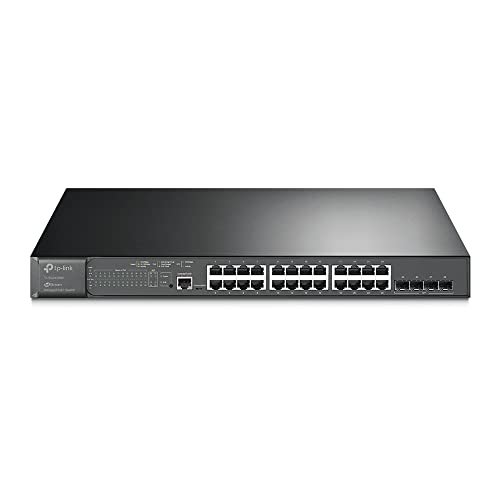
TP-Link
Omada SG3428MP, 24 Port Gigabit L2+ Managed PoE Switch
Prices retrieved from Amazon on 2026-09-29 and may since have changed; the price on Amazon at the time of purchase is the one that applies. As an Amazon Associate we earn from qualifying purchases, at no extra cost to you. No manufacturer pays for a place in this list.